Emailing An Applicant
You can use AppliTrack to send an email to an applicant.
Here's how:
You can access the Email interface through a couple of methods:
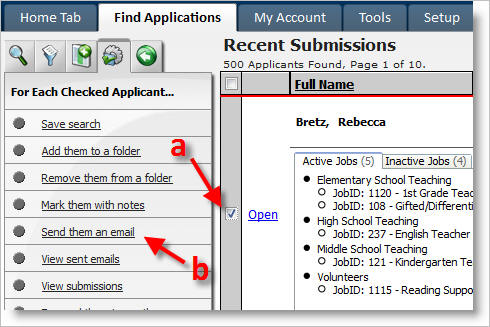
1) When viewing a list of applicants, check the checkbox next to their name (a), and then Send them an Email in the left-hand column (b).
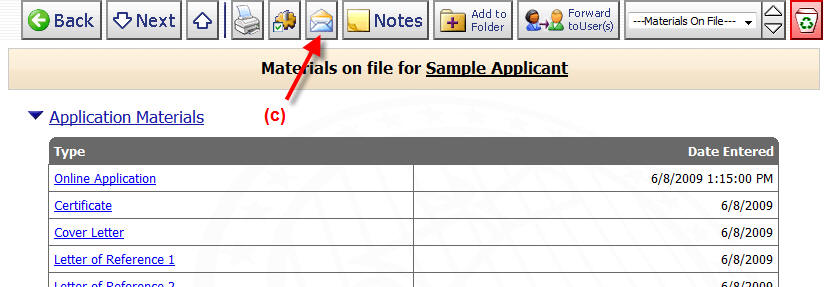
2) When viewing an applicant's Materials on file screen, click the Email icon (c).
Either of these options will bring up an email dialog which contains a number of options. These options are briefly described below.
1. Templates - Use this button to access previously saved
email templates.
2. Spell Check - Use this button to check the spelling in your
email.
3. Remove MS Word HTML - Use this button to remove formatting
that is added by Word. This is useful in correcting formatting issues when
copying text from Word.
4. Remove All Formatting - Use this button to remove ALL
formatting from the text.
5. Insert Merge Field - Use this dropdown to select a merge
field to insert into the email. These merge fields will be replaced with
the applicant's data when the email is sent. Note: by using Add/Remove
Columns in the applicant grid, additional data can be made accessible through
this tool.
6. Copy me on this email (checked by default) - Selecting this
option will CC: a copy of the email to your email address.
7. Copy email to public Notepad - This option will copy the
content of the email to the applicant's notepad, available for view by any
administrator.
8. Preview mode - Select this option to preview the email
before sending it.

Simply compose your message in this email dialog, and click Send Message to send it.
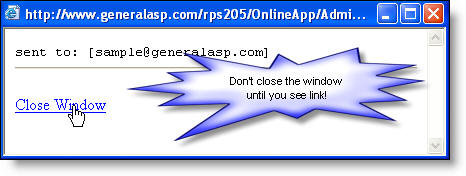
Wait for the emails to be sent (you can minimize the window if sending to 1000's). Eventually a "close window" link will appear to indicate the send is complete. You may need to continually scroll the window down to see this.
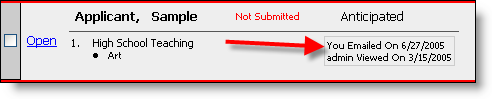
The next time you bring up a list of candidates that have been emailed, an item will appear in the "Action History" indicating when you sent the message.